Introduction
Maolan is a digital audio workstation for recording, editing, routing, and producing audio. It is built in Rust as a set of separate components: an audio engine, a graphical application, and command-line tools. This structure lets the engine handle audio work independently of the interface, while the GUI provides the workspace for arranging and managing a session.
Working with sessions
Maolan combines timeline-based recording and playback with non-destructive editing. Your source material remains available while you arrange and refine a session, so you can make changes without treating each edit as a permanent rewrite of the original audio. The engine processes audio and MIDI tracks, routes signals between tracks and plugins, and provides tools for recording, playback, and exporting a finished mix.
The live session view is designed for working with a session as it is being performed. Alongside the timeline, it offers a way to work with session material in a more immediate, performance-oriented setting.
Plugins and audio devices
Maolan supports the CLAP and VST3 plugin formats on its supported platforms, LV2 on Unix systems, and Audio Units (AU) on macOS. Plugins run in separate host processes, which helps keep a plugin failure from taking down the main application. Compatibility depends on the plugin and platform, and support continues to evolve.
Audio device support varies by operating system. Maolan uses ALSA and JACK on Linux, OSS and JACK on FreeBSD, CoreAudio on macOS, and WASAPI on Windows.
Components and platforms
The engine, graphical interface, and command-line tools are maintained as separate libraries and binaries. This gives the project distinct places for audio processing, interactive session work, and command-line operations.
Maolan targets FreeBSD, Linux, Windows, and macOS. Available audio backends and plugin formats differ between these systems, so check the relevant platform notes when choosing devices or plugins.
Audio Latency Calibration
Maolan measures round-trip latency by sending a signal from an audio output
through a physical loopback cable and receiving it at an audio input. The
maolan-calibrate command-line utility runs this measurement through Maolan’s
audio engine on Linux, FreeBSD, macOS, and Windows. It is not limited to OSS
devices.
Connect hardware output to an input, then list available devices:
cargo run --bin maolan-calibrate -- --list-devices
Use the device IDs printed by --list-devices in the matching command below.
The examples use channel 1; choose channel numbers that match your loopback
cable and hardware. If input and output use different devices, supply each
device’s ID separately.
Linux (ALSA)
This example selects ALSA card 0, device 0 for both input and output. Replace
hw:0,0 with the ID shown for a device that supports both directions:
cargo run --bin maolan-calibrate -- --input-device hw:0,0 --input-channel 1 --output-device hw:0,0 --output-channel 1
FreeBSD (OSS)
Replace /dev/dsp5 with the OSS device ID reported on your system:
cargo run --bin maolan-calibrate -- --input-device /dev/dsp5 --input-channel 1 --output-device /dev/dsp5 --output-channel 1
macOS (CoreAudio)
CoreAudio device IDs are UIDs. Replace the placeholders with the exact UIDs
printed by --list-devices for your input and output devices:
cargo run --bin maolan-calibrate -- --input-device "<input-device-UID>" --input-channel 1 --output-device "<output-device-UID>" --output-channel 1
Windows (WASAPI)
WASAPI device IDs look like wasapi:Speakers (X- Device Name). The stream
always uses 32-bit float, so omit --bits (values other than 32 are rejected).
The number of channels is the device’s current Windows format; if your loopback
returns on a higher-numbered channel (for example channel 3 of an 18-channel
interface), set that format to enough channels first. Calibration runs in
exclusive mode by default (other applications cannot use the device); pass
--shared to measure through the Windows mixer instead. Windows also
negotiates the period after the request, so each calibration is saved under
the period the engine actually negotiated:
cargo run --bin maolan-calibrate -- --input-device "wasapi:Microphone (2- X18/XR18)" --input-channel 3 --output-device "wasapi:Speakers (2- X18/XR18)" --output-channel 1
Tips
Close other applications using the device before calibrating. The utility opens the normal Maolan audio engine and routes its IO Delay generator to the selected output and the selected input to a measurement node. For each supported period, it measures for two seconds, applies the calibration, and saves the playback lead and recording offset before continuing. A period that fails to resolve is reported and skipped.
Defaults are 48,000 Hz, 32-bit audio, two periods, sync mode off, and
exclusive mode on: no other application may use the device while calibrating,
which keeps the measurement free of mixer interference. Some devices —
multichannel USB interfaces in particular — reject exclusive streams; when no
period can be calibrated exclusively, the sweep automatically retries in
shared mode and says so. Pass --shared to allow sharing the device from the
start (on Windows, --bits is rejected unless it is 32, WASAPI’s only
format). Use --rate, --bits, --nperiods, --sync-mode,
--exclusive, and --shared to configure the device; --gain adjusts
measurement input gain. Exact options and device IDs depend on the platform
and backend. Use the same engine runtime environment settings when calibrating
and running the DAW.
The current saved-calibration configuration is applied when opening FreeBSD
OSS and Windows WASAPI devices. It matches the input/output device pair,
sample rate, bit depth, period, and mode, and replaces the engine’s input and
output latency totals. On Windows the requested period is first resolved to
the period the engine negotiates with the device, so the record applies no
matter which supported period size the DAW requests. On Linux and macOS the
utility can measure latency, but Maolan does not yet reload saved measurements
as device latency overrides. Older records from the standalone mmap measurement
path are ignored; rerun calibration to replace them with records marked
engine_io_delay_v1.
DAW
Maolan provides two ways to work with a session: the Workspace for arranging and mixing over time, and the Live Session view for launching clips in scenes. The Connections view shows the session’s signal routing as a graph. These views use the same tracks and clips, so edits and playback state carry across them.
Workspace
The Workspace is the main arrangement view. Its timeline places audio and MIDI clips along tracks, with a ruler and tempo lane above the arrangement. Use the timeline to position and edit clips against musical time or samples. Tempo and time-signature changes can be placed along the session, and markers help identify important locations. The playhead and transport controls show and control playback; loop, punch, and session ranges define useful timeline regions.
Tracks can contain audio or MIDI material and can be organized in folders. Track controls provide common recording and mix functions such as arm, mute, solo, input monitoring, and level metering. Automation lanes can expose track controls and supported plugin parameters over time. The track area can be filtered and scrolled independently of the timeline.
The mixer sits below the arrangement and provides channel strips with level faders, balance controls, and meters. Its height can be adjusted, and the track, editor, and mixer panels can be shown or hidden to make room for the task at hand. The Workspace also opens focused editors for working with audio and MIDI material.
Live Session
Live Session arranges the session matrix as horizontal track strips. Each strip contains one slot per scene, and the Master strip at the right provides scene controls. Empty slots can be populated with clips; populated slots show the clip name and playback state. Click a slot to launch or stop its clip. Use the scene control in the Master strip to launch the scene’s enabled slots together. The currently playing scene and queued or selected slots are highlighted, so you can see what is active and what is about to launch.
Use the + control in the Master strip to add a scene. Right-click a scene there to rename or remove it. Each scene has its own launch quantization and can carry a tempo. A slot can be configured with a launch mode (Trigger, Gate, Toggle, or Repeat), a launch quantization (None, Beat, Bar, Two Bars, Four Bars, or Eight Bars), and a loop range. These settings control how an individual clip responds when launched; scene quantization controls coordinated launches. Right-click a slot to toggle its participation in scene launches, and middle-click to clear its clip reference. Double-click a populated slot to open the referenced clip in its editor.
Track strips show the track mixer controls alongside the slots, with a Master strip for the hardware output. Select slots or tracks for keyboard actions, and use MIDI learn to bind MIDI controls to slots or scenes. The track strips scroll horizontally when the session is wider than the window. The matrix references the session’s clips, so edits made to a clip are available from both Live Session and the Workspace.
Connections View
Connections View is where you connect separate tracks and hardware ports. Its full graph shows track inputs and outputs alongside the available hardware inputs and outputs. Drag from a compatible output port to an input port to create a route—for example, from a track output to another track’s input, from a hardware input to a track for recording, or from the Master output to hardware speakers. Audio and MIDI ports use different colors, and incompatible port types cannot be connected. Click a connection to select it, use Ctrl-click to change the selection, and disconnect selected routes when needed.
Double-click a hardware endpoint to open the system port connections for the selected backend; with JACK, this opens the JACK Connections view. Select a track to inspect its available connections, or double-click its node to open the focused Connections view. That view also provides access to the track’s Plugin List. Folder tracks expose group input and output ports in the graph, while the internal signal flow through a folder is described in Routing below.
Connections can also be opened for a track from Live Session, which is useful for checking its links to other tracks or hardware while performing. Use the full graph to see and manage connections across the session, or the focused view to work with one track’s endpoints.
Routing
Routing describes how signal flows within a track or folder. A track’s processing graph contains its input, plugin nodes, and output, joined by audio or MIDI connections. Connect compatible ports to choose the processing order, build parallel paths, or route around a plugin. These links determine how the track processes its signal; connections to other tracks and hardware are managed in Connections View.
Folder tracks provide input and output ports that form the boundaries of the group. Within that group, route child tracks and folder ports to define how signals pass through the folder—for example, route several child tracks into the folder’s output so they share the group’s processing path. Folder ports can also be connected internally to create a passthrough. The folder’s outer connections to other tracks or hardware are handled in Connections View.
A track’s internal routing is separate from its mixer level and pan: changing a fader adjusts signal level, while changing a connection alters the processing path. When diagnosing silence or an unexpected result, inspect the track’s processing graph and, for grouped tracks, the folder’s internal routes.
Working With Plugins
Maolan hosts plugins on tracks and, for supported audio clips, within a clip’s processing graph. The plugin graph represents the track or clip input, plugin instances, and output as nodes joined by audio or MIDI connections. Double-click a track in the Workspace to open its plugin graph. The graph view has a track selector and a Plugin List control; clip graphs identify the selected clip in the header. The focused Connections view also provides a Plugin List button for the selected track.
In the graph, drag between compatible ports to route signal through plugins or around them. Move plugin nodes to organize the graph; their positions are retained for the track. Double-click a plugin node to open its plugin interface. Select connection lines to manage plugin routing. This graph is useful for serial or parallel processing, and for checking whether a plugin’s inputs and outputs are connected as intended.
The Plugin List is the place to browse and manage the plugins used by a track. Maolan’s supported formats depend on the operating system: Unix builds support CLAP, VST3, and LV2; macOS also supports Audio Units (AU); Windows supports CLAP and VST3. Plugin compatibility and interface behavior depend on the plugin and host, and may vary. Track and clip plugin graphs are distinct: a track graph processes that track’s signal, while a clip graph stores processing with the clip.
Working With Clips
Audio and MIDI clips are the basic material used in both the arrangement and Live Session. The Clips pane gives you a library view of clips grouped by track, plus an Unused group for clips that are not currently placed on a track. Toggle the pane from the Workspace when you want to find or reuse clip material. Drag a clip from the pane onto a compatible track in the arrangement to place it at the playhead. Dropping a clip from the unused pool places that clip; dragging a clip already on a track makes a new copy. You can also drag clips onto Live Session slots to assign them to scenes.
In the arrangement, select and drag clips to move them, or use Ctrl-drag to copy. Drag an edge to change the clip’s visible bounds; audio clips can also be stretched with Shift-drag on an edge. Fade handles adjust audio fades. Use the timeline snap setting to align edits to bars, beats, subdivisions, clip edges, or freely. Clips can be renamed from their context menu, and double-clicking a clip opens its focused editor.
Audio clips can be opened in Maolan Edit for waveform work such as selecting a range, applying fades or gain, reversing audio, deleting material, or replacing a selection with silence. The embedded editor keeps edits associated with the session clip; use the editor’s undo and redo controls to review changes.
MIDI clips open in the piano roll, where notes can be created, selected, moved, resized, and edited alongside controller lanes. The piano roll supports quantizing, humanizing, and applying groove to selected notes. Audio and MIDI clips can both be launched from Live Session, while the arrangement provides precise placement and editing along the timeline.
Grouped clips can keep related material together when arranging or reusing it. The Clips pane avoids listing the same clip more than once when it is referenced in multiple places, so the unused pool and track lists remain easier to scan.
Modulators
Modulators generate changing control values that can be assigned to track parameters. Toggle the Modulators pane from the Workspace, then press + to create one. Select a modulator card to make it the active source for assignments. Give it a name, turn it on or off with its checkbox, and remove it with ×.
Choose a waveform shape—Sine, Triangle, Saw, Square, or Sample & Hold—and set its phase. The rate can run at a frequency in hertz or follow the session tempo using a musical division from a bar down to a sixty-fourth note. Use a free-running rate when modulation should have a fixed speed, or a musical rate when it should stay aligned to the tempo.
With a modulator selected, assign it from a track’s volume or balance control, or from a visible automation lane for a supported parameter. Assignments can target track volume and balance, MIDI CCs, and supported plugin parameters. The target dialog lets you set the minimum and maximum values the modulator will span; use Remove in that dialog to clear an existing assignment. Assigned controls are highlighted in the track or mixer UI, making it easier to see which parameters the selected modulator affects.
Modulator settings and assignments are stored with the session. Keep the pane open while assigning targets; hiding it clears the active selection, while leaving the modulators and their assignments in the session.
Export, Ranges and Formats
Open Export Settings to render the session to files. Choose one or more output formats—WAV, FLAC, MP3, or OGG—and select the sample rate. Available bit-depth choices depend on the selected formats; WAV-style PCM options include 16-, 24-, and 32-bit integer PCM and 32-bit float. Dither can be set to None, Rectangular, or Triangular when the chosen output supports it.
Choose Mixdown to render the selected hardware output channels together as a single mix. The dialog lets you choose which hw:out ports to include. Choose Stems (Pre-Fader) or Stems (Post-Fader) to render separate outputs for track output channels; pre-fader stems bypass track fader levels, while post-fader stems include them. Stem exports use one channel per track output port.
The range setting controls which part of the session is rendered: Session, Loop, Punch, or All. Session, loop, and punch exports use their corresponding timeline ranges; All renders from the start through the full session content. Set loop or punch boundaries in the Workspace before choosing those ranges.
Create ranges in the Workspace by dragging across the timeline with the left mouse button. Drag in the top ruler to create a loop range. Drag in the session-range lane of the timing area to set the session range, or drag in the punch area to set the punch range. The current snap mode applies to the new boundaries, so choose a bar, beat, subdivision, clip-edge, or no-snap mode before drawing when you need a particular alignment.
To move an existing range without changing its length, middle-drag from inside it. To resize it, middle-drag near its start or end edge. These gestures work for loop, session, and punch ranges in their respective lanes. After creating a loop or punch range, use its toolbar button to turn looping or punch recording on and off; setting the range alone does not activate the mode.
Optional processing includes peak normalization to a dBFS target or loudness normalization to a LUFS target with a true-peak ceiling. Loudness normalization can use a true-peak limiter, and the export dialog also offers a separate master limiter with a dBTP ceiling. A real-time fallback render is available for cases where rendering through the normal offline path is unsuitable. Once the settings are ready, choose Export and save the rendered output.
Markers, Tempo and Signature
The timing area above the tracks contains the marker ruler, tempo lane, and time-signature lane. Markers label locations in the session and make it easier to navigate between sections. Press N to create a marker at the playhead, or right-click an empty spot in the marker ruler to create one there. Right-click an existing marker to rename it.
Add a tempo point by middle-clicking an empty spot in the tempo lane, and add a time-signature point by middle-clicking an empty spot in its lane. Each point changes the session timing from its position onward. Select a point to edit its BPM or numerator and denominator in the timing controls. Shift-click adds points to the selection; drag selected points horizontally to move them. The current snap mode controls their placement.
Right-click a tempo or time-signature point to open its context menu. Duplicate copies the selected points, Reset restores their values from the previous point, and Delete removes them. The timing controls also provide these actions and a Clear button for deselecting points. Changes to tempo and meter affect the bar and beat ruler and any tempo-synced playback or modulation.
Maolan OSC
Maolan supports an OSC control surface for transport, track management, routing, plugins, automation, clip editing, MIDI editing, MIDI learn, audio/MIDI devices, offline bounce, and state queries.
OSC is disabled by default.
Enabling OSC
Enable OSC from Preferences in the GUI:
- Open
Preferences. - Turn on
Enable OSC. - Save preferences.
Once enabled, Maolan starts an OSC listener thread in the engine.
The preference is stored in:
~/.config/maolan/config.toml
OSC Listener
The engine listens on:
0.0.0.0:9000
There is no /maolan prefix on any OSC address.
Command Addresses
Arguments use OSC type tags:
i— integerf— floats— stringT/F— true / false (also accepted asi0/1)
Transport
/transport/play/transport/stop/transport/pause/transport/start/transport/end/transport/position i— set transport position in samples/transport/position_at i i— set position after N frames/transport/session_play/transport/record i— enable (1) or disable (0) recording/transport/loop_enable i/transport/loop_range ii— start, end in samples/transport/loop_range/clear— clear the loop range/transport/punch_enable i/transport/punch_range ii— start, end in samples/transport/punch_range/clear— clear the punch range/transport/metronome i/transport/clip_playback i/transport/session_clip_playback i/transport/panic/transport/tempo f— set tempo in BPM/transport/time_signature ii— numerator, denominator/transport/tempo_map s— JSON tempo/time-signature map/step_recording i— enable (1) or disable (0) step recording
Compatibility aliases are still accepted:
/transport/jump_to_start→/transport/start/transport/jump_to_end→/transport/end/transport/start_of_session→/transport/start/transport/end_of_session→/transport/end
Tempo map JSON format:
{
  "tempo_points": [
    {"sample": 0, "bpm": 120.0}
  ],
  "time_signature_points": [
    {"sample": 0, "numerator": 4, "denominator": 4}
  ]
}
Session
/session/launch s i— launch clip on track/scene/session/stop s i— stop clip on track/scene/session/scene i— launch every clip in the given scene/session/stop_scene i— stop every clip in the given scene/session/stopall— stop all currently playing session clips/session/path s— set session path
History is intentionally not exposed over OSC.
Track Management
/track/add s i i i i i— name, audio_ins, midi_ins, audio_outs, midi_outs, folder/track/remove s/track/rename s s/track/set_folder s i/track/toggle_folder s/track/set_parent s s— empty parent string removes the parent/track/add_audio_input s/track/remove_audio_input s/track/add_audio_output s/track/remove_audio_output s
Track Mixing / State
/track/level s f/track/balance s f/track/automation_level s f/track/automation_balance s f/track/midi_cc s i i i— track_name, channel, cc, value/track/mute s i/track/solo s i/track/arm s i/track/phase s i/track/master s i/track/color s f f f [f]— RGBA (alpha defaults to 1.0)/track/color/clear s— clear the track color/track/frozen s i/track/midi_lane_channel s i i— channel-1clears the assignment/track/session_slot s i s/track/session_slot_play_enabled s i i/track/toggle_input_monitor s i/track/toggle_disk_monitor s i/track/toggle_midi_input_monitor s i/track/toggle_midi_disk_monitor s i/track/clear_default_passthrough s/track/clear_plugins s/track/connect_audio s s i s i/track/disconnect_audio s s i s i/track/connect_midi s s i s i/track/disconnect_midi s s i s i
Connectable node strings: "track_input", "track_output",
"child:<name>", "clap_<id>", "vst3_<id>", "lv2_<id>", and
"au_<id>" (macOS).
Routing
/connect s i s i s— from_track, from_port, to_track, to_port, kind/disconnect s i s i s
kind is "audio" or "midi".
Clips
/clip/add s s i i i i i i i i s [s] [s]— track, name, start, length, offset, input_channel, muted, fade_enabled, fade_in, fade_out, kind, optional source_name, optional preview_name/clip/remove s s s— track, kind, comma-separated indices/clip/move s s i s i i i— kind, from_track, from_index, to_track, to_offset, to_channel, copy/clip/fade s i s i i i— track, clip_index, kind, fade_enabled, fade_in_samples, fade_out_samples/clip/bounds s i s i i i— track, clip_index, kind, start, length, offset/clip/mute s i s i/clip/rename s i s s/clip/source_name s i s s/clip/plugin_graph_json s i s— empty JSON string clears the graph/clip/pitch_correction s i s— JSON pitch-correction data or empty string/clip_group/add s s s s— track, kind, audio_clip JSON, midi_clip JSON
Pitch-correction JSON format:
{
  "preview_name": "preview.wav",
  "source_name": "source.wav",
  "source_offset": 0,
  "source_length": 44100,
  "frame_likeness": 0.5,
  "inertia_ms": 50,
  "formant_compensation": false,
  "points": [
    {
      "start_sample": 0,
      "length_samples": 1000,
      "detected_midi_pitch": 60.0,
      "target_midi_pitch": 61.0,
      "clarity": 0.9
    }
  ]
}
MIDI Editing
All MIDI editing commands take a JSON string as the last argument.
/midi/insert_notes s i s/midi/delete_notes s i s/midi/modify_notes s i s/midi/insert_controllers s i s/midi/delete_controllers s i s/midi/modify_controllers s i s/midi/sysex s i s/midi/step_record s i i i— device, channel, pitch, velocity
Insert-notes JSON format:
[
  {"index": 0, "start_sample": 0, "length_samples": 1000,
   "pitch": 60, "velocity": 100, "channel": 0}
]
Delete-notes JSON format:
{
  "indices": [0, 1],
  "deleted": [
    {"index": 0, "start_sample": 0, "length_samples": 1000,
     "pitch": 60, "velocity": 100, "channel": 0}
  ]
}
Modify-notes JSON format:
{
  "indices": [0, 1],
  "new": [{"start_sample": 0, "length_samples": 1000, "pitch": 60, ...}],
  "old": [{"start_sample": 0, "length_samples": 1000, "pitch": 59, ...}]
}
Controller JSON objects use sample, controller, value, and channel.
SysEx JSON format:
[{"sample": 0, "data": [240, 1, 2, 247]}]
Plugins
/plugin/load s s s— track_name, format ("clap","vst3","lv2", or"au"), plugin ID. AU is available on macOS; LV2 is available on Unix./plugin/unload s s s/plugin/unload_instance s s i/plugin/bypass s s i i— track_name, format, instance_id, bypassed/plugin/show_gui s s i/plugin/snapshot_state s s i/plugin/restore_state s s i s— JSON state ({"bytes":[...]}for CLAP,{"plugin_id":"...","component_state":[...],"controller_state":[...]}for VST3)/plugin/set_resource_dir s s i s [i]— track_name, format, instance_id, directory, optional shared flag (0/1, default1)/plugin/collect_resources s s i— track_name, format, instance_id; CLAP only. Asks the plugin to copy its external files into the resource directory set byset_resource_dir/plugin/connect_audio s s i s i/plugin/disconnect_audio s s i s i/plugin/connect_midi s s i s i/plugin/disconnect_midi s s i s i/plugin/set_param s s i i f/clip_plugin/set_param s s i i i f— format supports CLAP, LV2, and AU (AU on macOS)/clip_plugin/snapshot_state s s i i/clip_plugin/restore_state s s i i s/clip_plugin/set_resource_dir s s i i s [i]— directory plus optional shared flag (default1)/clip_plugin/collect_resources s s i i— CLAP only; see/plugin/collect_resources
Plugin graph node strings:
"track_input""track_output""clap_<instance_id>""vst3_<instance_id>""lv2_<instance_id>""au_<instance_id>"(macOS)
Automation
Automation targets supported in OSC:
"volume""balance""midi_cc_<channel>_<cc>"— channel is 1–16
Addresses:
/automation/mode s s— track_name, mode ("read","touch","latch","write")/automation/toggle_lane s s/automation/insert_point s s i f— track_name, target, sample, value/automation/delete_point s s i— track_name, target, sample
MIDI Learn
Track targets: volume, balance, mute, solo, arm, input_monitor,
disk_monitor.
Global targets: play_pause, stop, record_toggle.
Session target strings:
slot:<track>:<scene>scene:<scene>stop_track:<track>stop_all
Binding JSON (empty string clears):
{"device": "X-Touch", "channel": 1, "cc": 7}
Addresses:
/midi_learn/arm_track s s/midi_learn/arm_global s/midi_learn/arm_session s/midi_learn/bind_track s s s/midi_learn/bind_global s s/midi_learn/bind_session s s/midi_learn/clear
Modulators / Devices
/modulators s— JSON array of modulators/device/audio_open s— JSON audio-device configuration/device/midi_in_open s/device/midi_out_open s/device/jack/add_audio_in/device/jack/remove_audio_in i/device/jack/add_audio_out/device/jack/remove_audio_out i
Audio-device JSON format:
{
  "device": "hw:0",
  "input_device": "hw:0",
  "sample_rate_hz": 48000,
  "bits": 32,
  "exclusive": false,
  "period_frames": 256,
  "nperiods": 2,
  "sync_mode": false,
  "actual_period_frames": 256,
  "input_channels": 2,
  "output_channels": 2,
  "bytes_per_frame": 8
}
Offline Bounce
/bounce/start s s i i s i— track, output_path, start_sample, length_samples, automation_lanes JSON, apply_fader/bounce/cancel s/bounce/cancel_all
Piano Key
/piano_key s i i i— track_name, note, velocity, on
Query Addresses
Queries return replies to the sender.
/query/tracks→/response/tracks s.../query/transport→/response/transport i i f i i(sample, playing, tempo, time_sig_num, time_sig_denom)/query/meters→/response/meters .../query/plugins s→/response/plugins s i (i s s s i)*(track_name, plugin_count, instance_id, format, uri, name, bypassed)/query/plugin_parameters s s i i→/response/plugin_parameters s i s s(track_name, instance_id, format, parameters_json)/query/clip_plugin_parameters s s i i i→ clip plugin parameters reply/query/clap_plugins→/response/clap_plugins s.../query/clap_plugins_with_capabilities→ list with I/O capabilities/query/vst3_plugins→/response/vst3_plugins s.../query/lv2_plugins→/response/lv2_plugins s.../query/clap_note_names s→/response/clap_note_names s.../query/lv2_midnam s→/response/lv2_midnam s ...(LV2 midnam MIDI note names; Unix only)/query/vst3_graph s→/response/vst3_graph s.../query/diagnostics→/response/diagnostics s.../query/midi_learn_report→/response/midi_learn_report s...
Plugin-list replies contain strings in the form id|name for CLAP and VST3,
uri|name for LV2.
Errors are reported as:
/error s
maolan-osc Helper
The repository includes a command-line helper:
maolan-osc
Global Options
maolan-osc --target 127.0.0.1:9000 play
maolan-osc --host 192.168.1.10 --port 9000 stop
maolan-osc --file commands.txt
--file <path> reads commands from a file, one per line, using the same
syntax as the command line. Blank lines and lines starting with # are
ignored, and single or double quotes group arguments that contain
whitespace (track names, JSON payloads). The whole file is parsed first
and every error is reported with its line number; packets are sent only
when the file parses without errors.
Example command file:
# set up a mix
track level "Drums" -6.0
track mute "Drums" 1
tempo 128.5
Create a text file with one command per line and pass it to maolan-osc --file.
Examples
cargo run --bin maolan-osc -- play
cargo run --bin maolan-osc -- stop
cargo run --bin maolan-osc -- pause
cargo run --bin maolan-osc -- start
cargo run --bin maolan-osc -- end

cargo run --bin maolan-osc -- position 44100
cargo run --bin maolan-osc -- tempo 128.5
cargo run --bin maolan-osc -- record 1

cargo run --bin maolan-osc -- track add "Vocals" 2 0 2 0
cargo run --bin maolan-osc -- track remove "Vocals"
cargo run --bin maolan-osc -- track rename "Vocals" "Lead Vocals"
cargo run --bin maolan-osc -- track folder "Buses" 1
cargo run --bin maolan-osc -- track parent "Kick" "Drums"

cargo run --bin maolan-osc -- track level "Drums" -6.0
cargo run --bin maolan-osc -- track mute "Drums" 1
cargo run --bin maolan-osc -- track solo "Drums" 1
cargo run --bin maolan-osc -- track arm "Vocals" 1

cargo run --bin maolan-osc -- connect "Kick" 0 "Drums" 0 audio
cargo run --bin maolan-osc -- disconnect "Kick" 0 "Drums" 0 audio

cargo run --bin maolan-osc -- plugin load "Drums" clap "rs.maolan.stereo"
cargo run --bin maolan-osc -- plugin bypass "Drums" clap 0 1
cargo run --bin maolan-osc -- plugin connect_audio "Drums" track_input 0 clap_0 0
cargo run --bin maolan-osc -- plugin set_param "Drums" clap 0 0 0.75

cargo run --bin maolan-osc -- track connect_audio "Drums" child:"Sub" 0 track_output 0

cargo run --bin maolan-osc -- clip add "Vocals" "Take 1" 0 44100 0 0 0 1 100 100 audio

cargo run --bin maolan-osc -- midi insert_notes "Piano" 0 '[{"index":0,"start_sample":0,"length_samples":1000,"pitch":60,"velocity":100,"channel":0}]'

cargo run --bin maolan-osc -- automation mode "Drums" touch
cargo run --bin maolan-osc -- automation point "Drums" midi_cc_1_7 44100 64.0

cargo run --bin maolan-osc -- midi_learn bind_track "Drums" volume '{"device":"X-Touch","channel":1,"cc":7}'

cargo run --bin maolan-osc -- query tracks
cargo run --bin maolan-osc -- query transport
cargo run --bin maolan-osc -- query meters
cargo run --bin maolan-osc -- query plugins "Drums"
cargo run --bin maolan-osc -- query plugin_parameters "Drums" clap 0
cargo run --bin maolan-osc -- query clap_plugins
cargo run --bin maolan-osc -- query clap_plugins_with_capabilities
cargo run --bin maolan-osc -- query diagnostics

cargo run --bin maolan-osc -- session stop_scene 2
cargo run --bin maolan-osc -- track automation_level "Drums" -6.0
cargo run --bin maolan-osc -- track midi_cc "Drums" 1 7 64
cargo run --bin maolan-osc -- step_recording 1

cargo run --bin maolan-osc -- plugin show_gui "Drums" clap 0
cargo run --bin maolan-osc -- plugin snapshot_state "Drums" clap 0
cargo run --bin maolan-osc -- plugin restore_state "Drums" clap 0 '{"bytes":[1,2,3]}'
cargo run --bin maolan-osc -- plugin set_resource_dir "Drums" clap 0 "/path/to/session/data" 1
cargo run --bin maolan-osc -- plugin collect_resources "Drums" clap 0

cargo run --bin maolan-osc -- clip_plugin snapshot_state "Drums" clap 0 0
Run maolan-osc --help for the full command list.
Notes
- OSC only starts after it is enabled in preferences and the setting has been saved.
- If OSC is disabled,
maolan-osccan still send packets, but the engine will not be listening for them. - Query replies are sent to the source address of the request.
- Complex structured data (clip data, MIDI notes, controllers, tempo maps, modulators, audio-device settings, automation lanes) is sent as JSON strings because the OSC implementation uses flat typed arguments rather than bundles.
Maolan Plugins
The complete Maolan in-house plugin collection. Built in Rust as CLAP plugins with Iced-based GUIs in the TokyoNight theme.
- 23 exported variants
- 22 distinct products
- Iced TokyoNight GUI
- BSD-2 license
Instruments
Drums
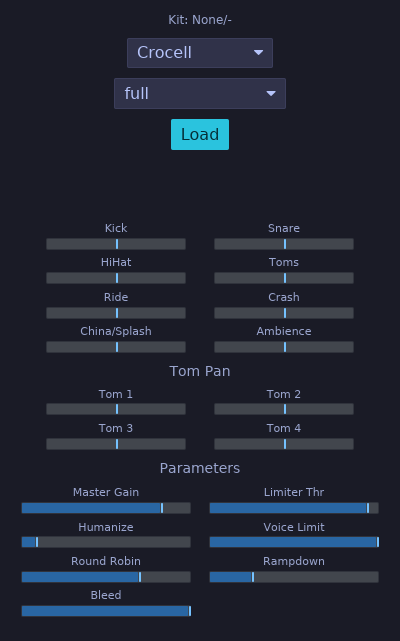
Plugin ID: rs.maolan.drums
Drum sampler CLAP plugin inspired by DrumGizmo. Async kit loading, MIDI triggering, velocity mapping, round-robin, humanization, per-output balancing, and built-in limiter. 16 mono outputs (Kick L/R, Snare L/R, HiHat L/R, Toms L/R, Ride L/R, Crash L/R, China/Splash L/R, Ambience L/R).
Kick
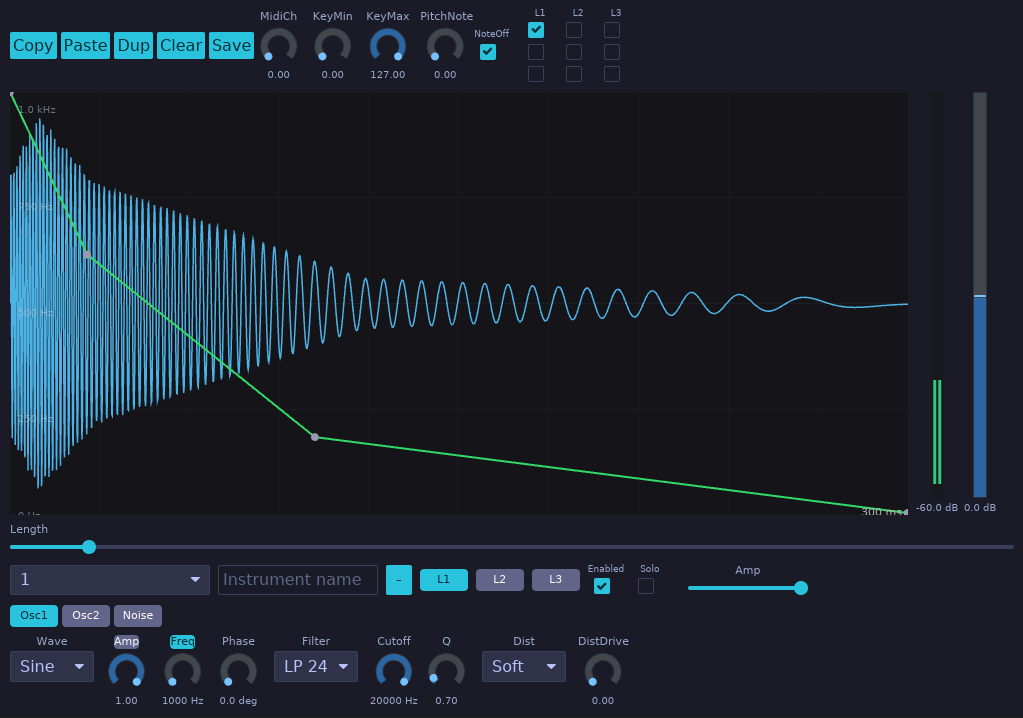
Plugin ID: rs.maolan.kick
Percussive synthesizer with layered oscillators and noise. MIDI note-triggered with 16 mono outputs, velocity sensitivity, and a multi-layer DSP engine. Suitable for designing kick and percussion sounds from scratch without sample content.
Random
Plugin ID: rs.maolan.random
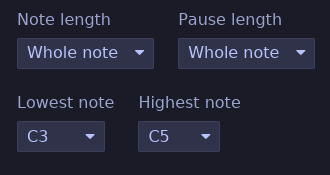
A singing practice MIDI source that emits a random reference pitch, pauses for you to sing it back, and repeats while the session transport plays. It generates MIDI notes within the selected range (C3 to C5 by default), with no consecutive repeated pitches unless the range contains only one note. No MIDI input or audio output is needed.
The Note length and Pause length dropdowns control their durations independently: 1/16, 1/8, 1/4, 1/2, or whole notes, and 1, 2, or 4 bars. Both default to one bar. Note values follow the session tempo; bars also follow its time signature (one bar is three quarter notes in 3/4 or six eighth notes in 6/8). Stopping sends a MIDI note-off if a generated note is active; starting begins a new note and pause cycle. Generated MIDI notes use channel 1 and velocity 100. Route the MIDI output to an instrument to hear the reference pitch.
Lowest note and Highest note set the inclusive pitch range, using note names from C-1 to G9 (middle C is C4). The dropdowns keep the lowest note at or below the highest note. Choose the same note in both to practice one pitch repeatedly. Range changes apply to the next note, and all four settings are saved with the session.
Sampler
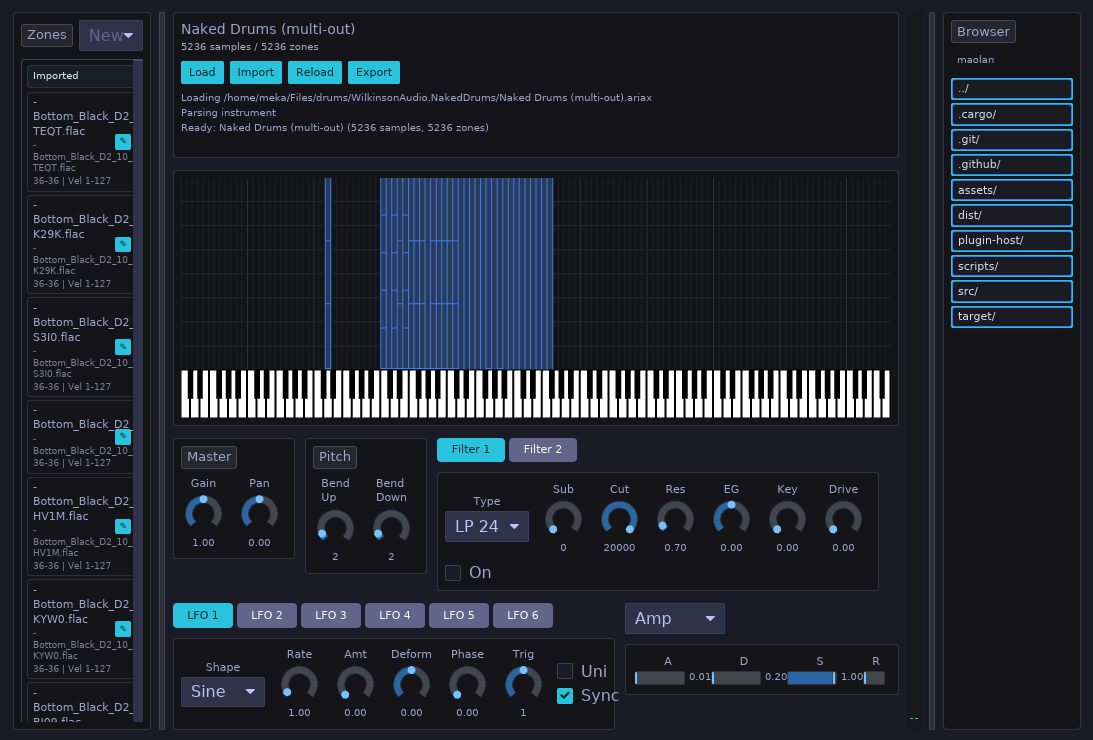
Plugin ID: rs.maolan.sampler
Polyphonic sample player supporting SFZ (v1/v2) and SoundFont 2 (SF2.01/SF2.04) instruments in addition to standalone WAV files.
- SFZ Format Engine: Includes preprocessor for
#includerelative path imports,#definemacros,#if/#else/#endifblocks, and header scope precedence (control→global→master→group→region). Supports core v1/v2 opcodes for key/velocity mapping, key crossfades, tuning, panning, loops, playback directions, keyswitches, round-robin / random variants, envelope generators, LFOs, and multimode filters. - SoundFont 2 (SF2) Engine: Parses RIFF SoundFont files with 16-bit and 24-bit PCM sample data,
INFOmetadata, multi-preset bank structures, generator hierarchy merging (GeneratorSet), and default/customimodmodulators mapped to the modulation matrix. - Background Loading: Instrument parsing and resample rendering occur asynchronously on a background worker thread. New patches swap into the audio engine atomically (
AtomicArc) without interrupting active voices or causing audio dropouts. - Interactive GUI: Supports drag-and-drop file loading, bank/preset dropdown selection, real-time loading progress indicator, instant reload button for SFZ editing, and scrollable diagnostic error logging.
Synth
Plugin ID: rs.maolan.synth
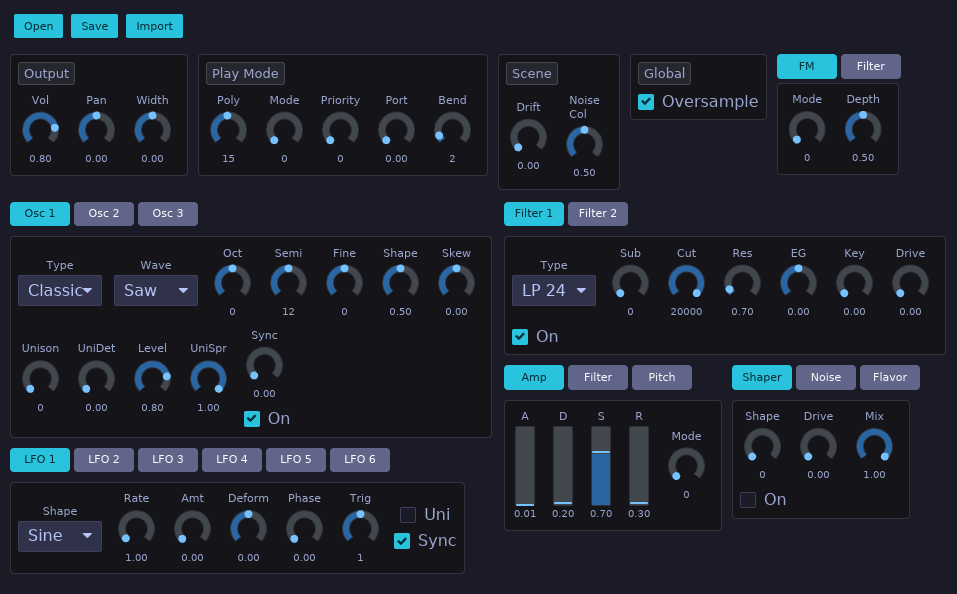
Polyphonic synthesizer inspired by Surge XT. Features three oscillators with multiple synthesis modes (including wavetable, FM, and physical-modeling flavors), two multimode filters with configurable routing, three envelopes, six LFOs, a 12-slot modulation matrix, an MSEG, a step sequencer, noise and waveshaper sections, and microtonal tuning support. Stereo I/O.
Parameter groups
| Group | Description |
|---|---|
| Osc1–Osc3 | Type, octave, semitone, fine, shape, skew, formant, level, unison, sync, sub, routing, solo/mute |
| Filter1–Filter2 | Type, subtype, cutoff, resonance, EG amount, key tracking, drive, feedback, enable |
| Filter | Filter routing and balance |
| AmpEG / FilterEG / PitchEG | Attack, decay, sustain, release, mode, shapes, retrigger, tempo sync, uber release |
| LFO1–LFO6 | Rate, shape, amount, deform, trigger, sync mode/division, envelope, phase, unipolar |
| Mod | Fixed mod depths (velocity/key/LFO to filter, mod wheel/aftertouch to filter) |
| ModRoute1–12 | Source, target, depth, curve |
| Noise | Type, level, color, filter, stereo, enabled |
| Waveshaper | Shape, drive, mix, enable |
| Flavor | Additional filter-like flavor stage |
| Step Seq | 16 step values, loop start/end, shuffle, trigger targets |
| MSEG | 128 nodes, 127 segment curves, loop, retrigger targets |
| Macros | Macro1–8 modulation sources |
| Master | Volume, pan, width, polyphony, portamento, pitch-bend range, play mode, voice priority |
| Tuning | Scale, root, SCL index |
| FM / Twist / String / Alias | Oscillator-specific parameters for FM, twist, string, and alias engines |
Effects
Chorus
Plugin ID: rs.maolan.chorus
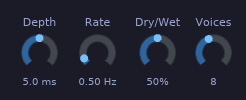
Multi-voice stereo chorus with modulated delay lines. Even voices read from the left channel and odd voices from the right, producing a wide stereo image.
Parameters
| Parameter | Range | Default | Description |
|---|---|---|---|
| Mod Depth | 0.0 … 10.0 ms | 5.0 | LFO delay modulation depth |
| Mod Rate | 0.1 … 5.0 Hz | 0.5 | LFO rate |
| Dry/Wet | 0.0 … 1.0 | 0.5 | Mix balance |
| Voices | 2 … 16 | 8 | Number of chorus voices |
Compressor
Plugin ID: rs.maolan.compressor
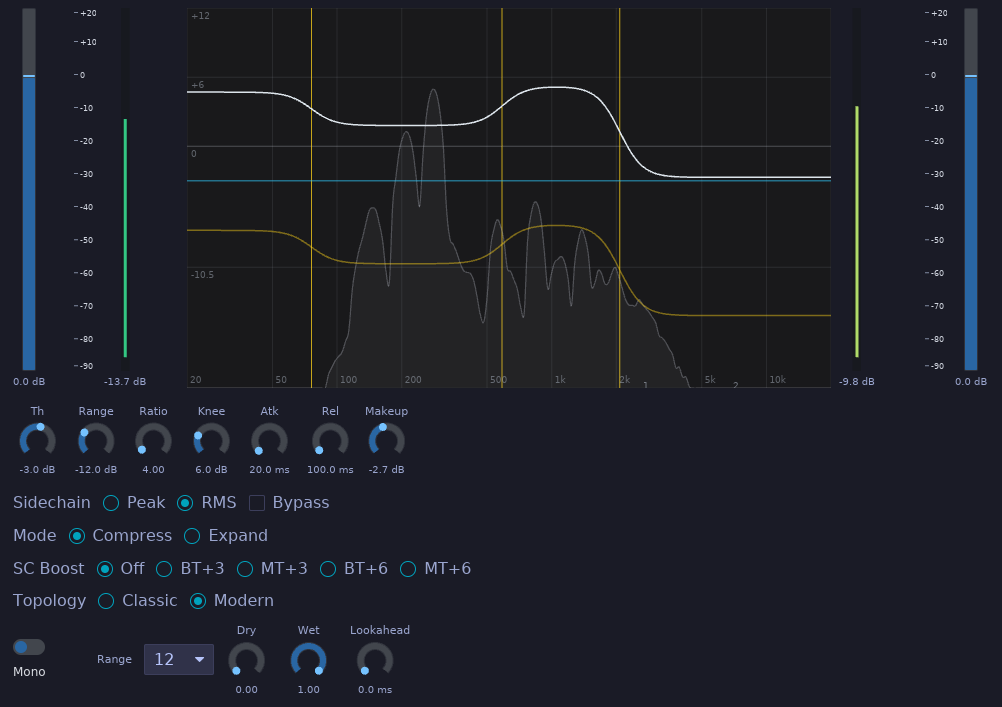
Multiband compressor with LR4 crossovers. Peak/RMS sidechain, FabFilter Pro-MB-style Compress/Expand modes with signed Range, lookahead, sidechain boost, and classic/modern topology. Double-click the spectrum display to add bands. Drag crossover lines to move splits. Drag the white gain contour to adjust Gain/Makeup for the band under the cursor; middle-drag it to adjust Range; right-drag it to adjust Threshold. Drag the yellow contour to adjust Range directly, or the blue contour to adjust Threshold directly. Negative Range draws below gain and positive Range draws above it.
DeEsser
Plugin ID: rs.maolan.deesser
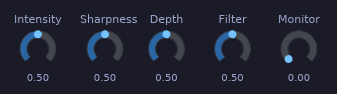
Sibilance reduction processor. Detects ess sounds via slew-rate patterns across a configurable window. IIR smoothing, dynamic ratio reduction, and monitor mode. Stereo I/O.
Delay
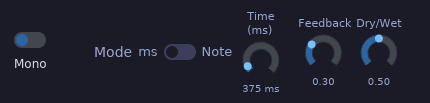
Plugin ID: rs.maolan.delay
Delay with millisecond or tempo-synced note divisions. Circular buffers with linear interpolation and smooth delay-time chasing. Reads host BPM from CLAP transport.
Formant
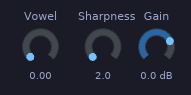
Plugin ID: rs.maolan.formant
Vowel formant filter using three constant-Q bandpass biquads per channel. The Vowel control crossfades between the A, E, I, O, and U vowel tables for continuous timbre shaping.
Parameters
| Parameter | Range | Default | Description |
|---|---|---|---|
| Vowel (A-E-I-O-U) | 0.0 … 4.0 | 0.0 | Vowel selector with interpolation |
| Sharpness (Q) | 2.0 … 40.0 | 2.0 | Bandpass filter Q |
| Output Gain | −60.0 … 20.0 dB | 0.0 | Output gain |
Flanger
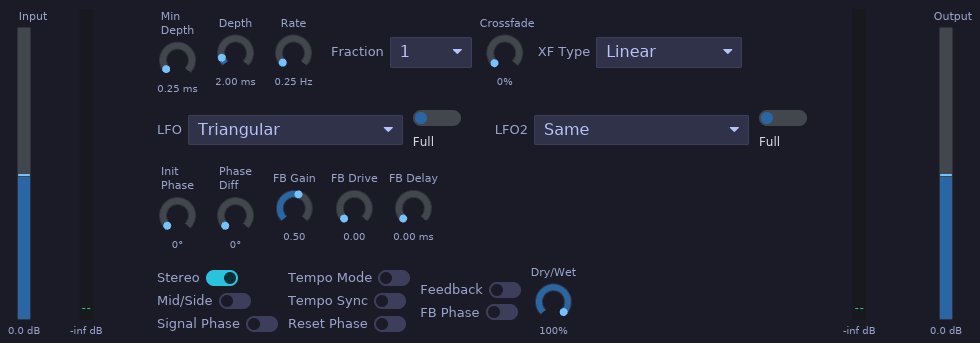
Plugin ID: rs.maolan.flanger
Stereo flanger with LFO-modulated delay lines and a separate feedback path, ported from LSP Plugins’ Flanger Stereo algorithm. Offers 13 LFO shapes (plus off) with independent right-channel LFO, tempo-synced rate, wrap crossfading, mid/side processing, and feedback with drive and delay. The Stereo switch selects stereo (2 audio ports, default) or mono (1 audio port) I/O and asks the host to rescan audio ports when changed; the stereo-only parameters (LFO 2, Phase difference L/R, Mid/Side) apply when Stereo is on.
Parameters
| Parameter | Range | Default | Description |
|---|---|---|---|
| Stereo | Off / On | On | Switch between stereo (2 audio ports) and mono (1 audio port) I/O |
| Rate | 0.01 … 20.0 Hz | 0.25 | LFO rate |
| Tempo | 20 … 360 BPM | 120 | Tempo for tempo time mode |
| Tempo Sync | Off / On | Off | Read BPM from host transport |
| Time Mode | Rate / Tempo | Rate | How the LFO rate is determined |
| Time Fraction | 1/64 … 8 | 1 | Note fraction for tempo mode |
| Crossfade | 0 … 50 % | 0 | Wrap crossfade length (fraction of half cycle) |
| Crossfade Type | Const power / Linear | Const power | Audible crossfade law (feedback always linear) |
| LFO Type | 13 shapes + Off | Triangular | Left channel LFO shape |
| LFO Period | Full / First / Last | Full | Portion of the LFO cycle used |
| LFO2 Type | Same + 13 shapes + Off | Same | Right channel LFO shape |
| LFO2 Period | Full / First / Last | Full | Right channel LFO period |
| Initial Phase | 0 … 360° | 0 | LFO phase after reset |
| Phase Diff L/R | 0 … 360° | 0 | Phase shift between channels |
| Reset Phase | trigger | — | Restart the LFO at the initial phase |
| Mid/Side | Off / On | Off | Process mid and side independently |
| Min Depth | 0.01 … 10.0 ms | 0.25 | Minimum delay |
| Depth | 0.1 … 20.0 ms | 2.0 | LFO delay sweep depth |
| Signal Phase | Off / On | Off | Invert the wet signal polarity |
| Feedback On | Off / On | Off | Enable the feedback path |
| Feedback Gain | 0.0 … 0.89125 | 0.5 | Feedback amount (−6 dB default) |
| Feedback Drive | 0.0 … 1.0 | 0.0 | Input drive into the feedback path |
| Feedback Delay | 0.0 … 5.0 ms | 0.0 | Extra feedback path delay |
| Feedback Phase | Off / On | Off | Invert feedback gain and drive |
| Input Gain | −24.0 … 24.0 dB | 0.0 | Input gain |
| Dry/Wet | 0.0 … 1.0 | 0.5 | Dry/wet mix balance |
| Output Gain | −24.0 … 24.0 dB | 0.0 | Output gain |
Limiter
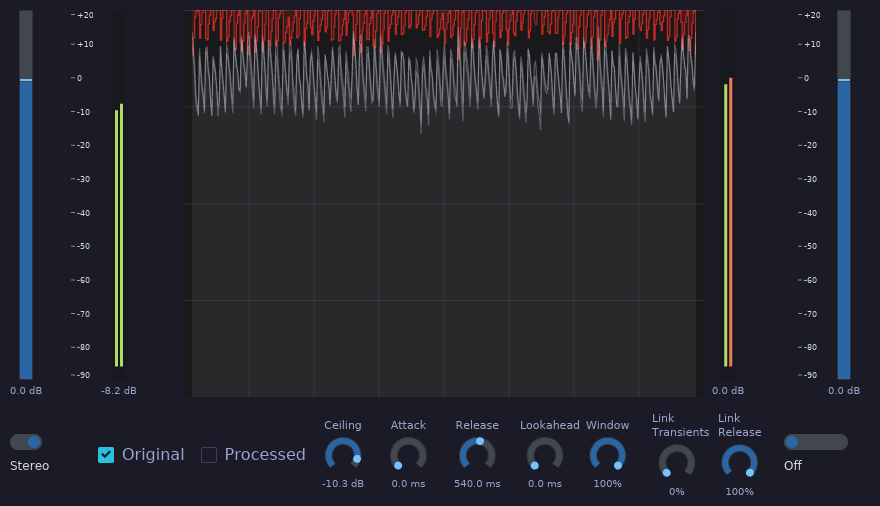
Plugin ID: rs.maolan.limiter
Adaptive clipper/limiter with Vintage and Modern variants. Multiple limiting modes from subtle attenuation to aggressive clipping. Stereo I/O.
Modeler
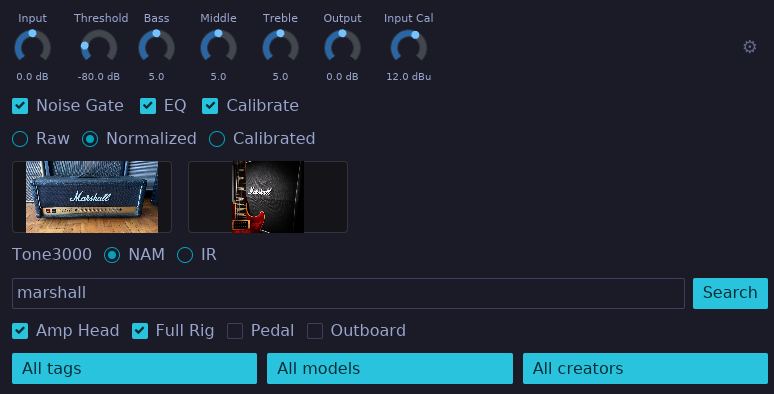
Plugin ID: rs.maolan.modeler
Neural Amp Modeler (NAM) plugin. Loads neural network amp models and impulse responses. Includes a noise gate, tone stack (Bass/Mid/Treble), input/output calibration, and DC blocking. Mono I/O.
Parametric EQ
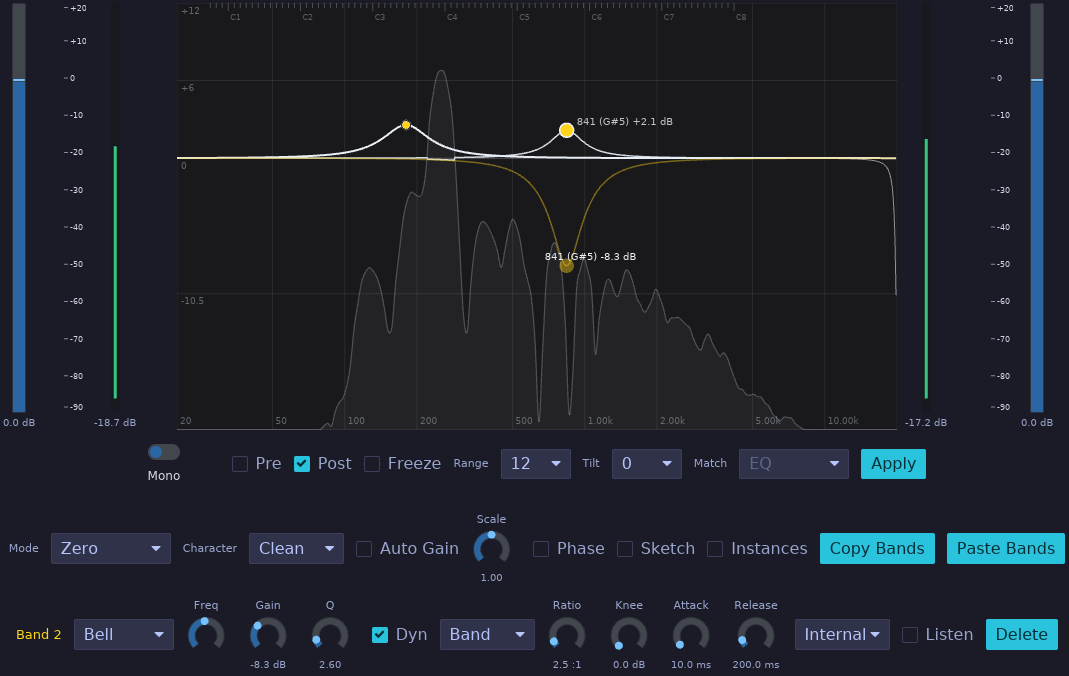
Plugin ID: rs.maolan.equalizer
32-band parametric equalizer using peaking biquad filters. Each band has independent Frequency, Gain, Q, Type, Slope, and Dynamics controls. Middle-drag a selected bell band dot to create or adjust its dynamic range target. Input and output gain with global bypass. Mono or stereo I/O depending on host channel count.
Using the EQ graph
- Double-click an empty spot in the graph to create a bell band there. The horizontal position sets its frequency and the vertical position sets its gain. The new band is selected; drag its node to adjust frequency and gain. Hold Shift while dragging the node vertically to adjust Q.
- To add dynamics to a selected bell band, middle-drag its node vertically. The node’s starting level sets the threshold; the drag position sets the dynamic target. The band then responds when its detected level crosses the threshold. Middle-drag again to adjust the target. Dynamic targets are available for bell bands.
- To remove the selected band, click Delete.
Phaser
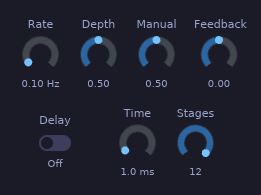
Plugin ID: rs.maolan.phaser
Modulated all-pass cascade phaser. The LFO sweeps the center frequency of up to 12 first-order all-pass stages. Feedback can be taken from the previous output or from a configurable delay line.
Parameters
| Parameter | Range | Default | Description |
|---|---|---|---|
| LFO Rate | 0.01 … 2.0 Hz | 0.1 | LFO rate |
| LFO Depth | 0.0 … 1.0 | 0.5 | LFO modulation depth |
| Manual (Center) | 0.0 … 1.0 | 0.5 | Manual center position |
| Feedback | −0.98 … 0.98 | 0.0 | Feedback amount |
| Feedback Delay On | 0 / 1 | 0 | Use delay-line feedback instead of previous output |
| Delay Time | 0.0 … 20.0 ms | 1.0 | Feedback delay time |
| Stages (All-pass) | 1 … 12 | 12 | Number of all-pass stages |
Reverb
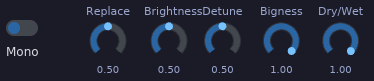
Plugin ID: rs.maolan.reverb
Stereo reverb built from three allpass-like delay blocks with cross-feedback, vibrato predelay, and input/output lowpass filters. Based on Airwindows Reverb.
Saturator
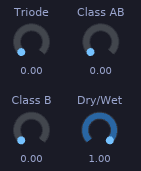
Plugin ID: rs.maolan.saturator
Waveshape saturation with sine-based distortion and intensity-dependent blend. Stereo I/O.
Stereo
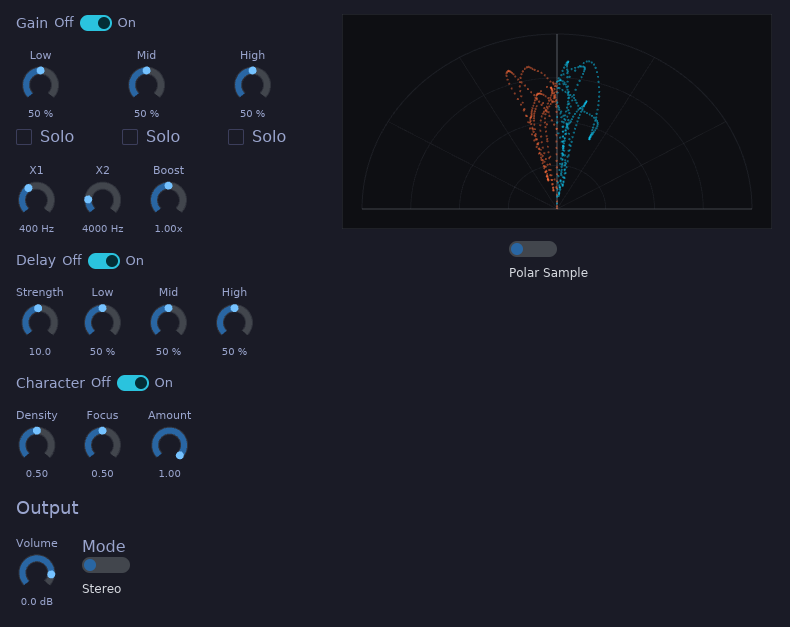
Plugin ID: rs.maolan.stereo
Multiband stereo width processor with four sections: Gain, Delay, Character, and Output. Uses LR4 crossovers and mid/side processing per band. Monitor mode for checking stereo, mono, and side signals. Stereo I/O. Best suited for single instruments.
- Gain — per-band width gains (Low/Mid/High), crossover frequencies (X1, X2), and the global side Boost.
- Delay — per-band Haas-style delays (Low/Mid/High Delay) with a shared Strength control.
- Character — sin/cos mid/side density with offset delay, inherited from the former Stereo plugin design. Density shapes the side, Focus the mid, and Amount sets the effect mix.
- Output — output Volume, Monitor Mode (Stereo/Mono/Side), and per-band solos.
Each of the Gain, Delay, and Character sections can be switched on or off from the GUI with the section switches (Gain, Delay, Character Off/On toggles at the head of each section). The switches are GUI-only controls; they are not automatable parameters. When both Gain and Delay are switched off, the crossover band split is bypassed entirely and the signal goes straight to the Character section (or to the output when Character is off as well).
Tuner
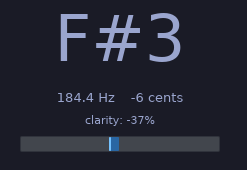
Plugin ID: rs.maolan.tuner
Monophonic pitch tuner using the YIN algorithm. Adjustable reference pitch and clarity threshold for reliable pitch detection.
Parameters
| Parameter | Range | Default | Description |
|---|---|---|---|
| Reference Hz | 420.0 … 460.0 | 440.0 | Tuning reference frequency |
| Clarity Threshold | 0.0 … 1.0 | 0.7 | Minimum clarity for pitch detection |
VU
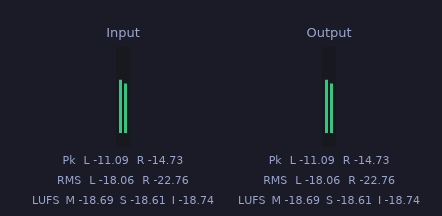
Plugin ID: rs.maolan.vumeter
Stereo VU meter for diagnostics. Two audio inputs (Left/Right) with ballistics-style VU displays and no parameters. Use it to monitor signal levels on any channel.
Vocoder
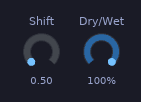
Plugin ID: rs.maolan.vocoder
24-band filter-bank vocoder. Each band has its own envelope follower that shapes the band-limited signal before summing. Spectral Shift transposes the entire filter bank.
Parameters
| Parameter | Range | Default | Description |
|---|---|---|---|
| Spectral Shift | 0.5 … 4.0 | 0.5 | Filter-bank frequency shift multiplier |
| Dry/Wet | 0.0 … 1.0 | 1.0 | Mix balance |
Wah
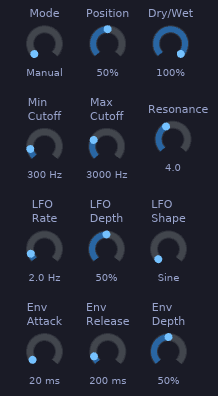
Plugin ID: rs.maolan.wah
Resonant wah-wah filter with pedal, LFO, and envelope follower modes. The filter sweeps a resonant lowpass/bandpass-style response between Min and Max Cutoff, driven manually by the Position control, automatically by an LFO, or by the input signal envelope.
Parameters
| Parameter | Range | Default | Description |
|---|---|---|---|
| Mode | 0.0 … 2.0 | 0.0 | Sweep mode (Pedal / LFO / Envelope) |
| Min Cutoff | 50.0 … 2000.0 | 300.0 | Minimum filter cutoff |
| Max Cutoff | 500.0 … 10000.0 | 3000.0 | Maximum filter cutoff |
| Resonance | 0.1 … 10.0 | 4.0 | Filter resonance |
| Position | 0.0 … 1.0 | 0.5 | Manual pedal position |
| LFO Rate | 0.1 … 20.0 | 2.0 | LFO rate |
| LFO Depth | 0.0 … 1.0 | 0.5 | LFO modulation depth |
| LFO Shape | 0.0 … 3.0 | 0.0 | LFO waveform |
| Env Attack | 1.0 … 500.0 | 20.0 | Envelope follower attack time |
Plugin Format
All Maolan plugins are distributed as CLAP (CLever Audio Plugin) binaries with embedded Iced GUIs. They support Linux, FreeBSD, macOS, and Windows.
The plugin collection is developed in the plugins repository. UI windowing is handled by baseview, a low-level window system interface for audio plugin UIs. Extra widgets are implemented as part of maolan-widgets repository.
MixOSC
Rust OSC client and control surface for Behringer X32 and X-Air digital mixers.
mixosc contains two pieces:
-
A desktop GUI built with
icedthat discovers mixers on the local network and exposes a mixer-style control surface. -
A Rust library for UDP/OSC discovery, connection probing, state loading, state updates, and meter parsing.
-
2 components: GUI + library
-
Default X32 UDP port: 10023
-
7 strip types supported
Maolan Integration
MixOSC is built into Maolan as a dedicated X32 hardware mixer view. When enabled, the full MixOSC control surface runs directly inside the DAW, sharing the same Iced rendering context and widget theme.
How It Works
- Click the sliders icon in the Maolan toolbar to open the X32 view.
- Maolan instantiates
mixosc::app::StatusAppinside the GUI state. - OSC subscription starts only while the X32 view is visible, saving resources.
- All mixer messages are wrapped as
Message::HwMixerand dispatched through the standard update loop. - The MixOSC surface renders natively using the same Iced backend as the rest of Maolan.
Technical Details
- Integrated as
View::X32in the Maolan view state. - Uses
mixosc::app::subscriptionfor live OSC updates when active. - Mixer state is owned by the DAW and updated through
mixosc::app::update. - The surface view is produced by
mixosc::app::viewand mapped into Maolan’s message system. - Connection to the X32 is handled automatically via UDP broadcast discovery or a configured address.
Supported Mixers
| Mixer | Channels | Buses | FX Returns | DCAs | Port |
|---|---|---|---|---|---|
| X32 / X32 Compact / X32 Producer / X32 Rack | 32 + 8 aux | 16 | 8 | 8 | 10023 |
| XR18 / XR16 / XR12 / X18 / X16 / X12 | 16 | 6 | 4 + 1 aux | 4 | 10024 |
Current GUI Behavior
The application discovers mixers automatically on the local network, connects to every mixer it finds, and opens a tab for each one. You can switch between mixers by clicking their tabs at the top of the window.
When only one mixer is discovered (or when a specific address is given), the tab bar still appears with a single tab.
The control surface loaded in each tab matches the detected model of that mixer.
X32 Layout
CH 01-32AUX 01-08BUS 01-12FX 01-08MTX 01-06DCA 1-8Main LR
X-Air Layout
CH 01-16BUS 01-06FX 01-04+AUXDCA 1-4Main LR
For the strips that support them, the UI shows and updates in real time:
- Name and scribble-strip color
- Input gain or trim
- Sends
- Pan
- Fader level
- Input, bus, main/matrix meters, and RTA (Real-Time Analyzer)
- Mute
- Solo
The app subscribes to live OSC updates with /xremote and meter subscriptions, so local changes on the mixer are reflected back into the UI.
What Is Implemented per Strip Type
X32
- Channels and aux inputs: gain/trim, sends to buses 1-16, pan, fader, mute, solo, color, name, meters
- FX returns: sends to buses 1-16, pan, fader, mute, solo, color, name
- Buses: sends to matrices 1-6, pan, fader, mute, solo, color, name, bus meters
- Matrices: fader, mute, color, name, matrix meter
- DCAs: fader, mute, color, name
- Main LR: fader, mute, color, stereo meter, RTA
X-Air
- Channels: headamp gain, sends to buses 1-6, pan, fader, mute, solo, color, name, meters
- FX returns: sends to buses 1-6, pan, fader, mute, solo, color, name
- Buses: fader, mute, solo, color, name, bus meters
- DCAs: fader, mute, color, name
- Main LR: fader, mute, color, stereo meter, RTA
Implementation details from the current code:
- Gain uses headamp control where available and trim otherwise.
- On X32, channel
17-32use trim gain; earlier channels and supported aux inputs can use headamp gain. - On X-Air, all 16 channels have headamp gain.
- Gain is not exposed for buses, FX returns, matrices, or DCAs.
- Pan is not exposed for matrices or DCAs.
- DCA and matrix solo are not sent to the mixer.
- Master solo is only a local UI toggle right now; it is not sent to the mixer.
Running
Automatic discovery on the local network (connects to all discovered mixers):
cargo run
Connect to a specific mixer only:
cargo run -- 192.168.1.62
You can also include a custom port:
cargo run -- 192.168.1.62:10023
cargo run -- 192.168.1.62:10024
Or use the environment variable:
MIXOSC_MIXER_ADDR=192.168.1.62 cargo run
Default ports:
- X32:
10023 - X-Air (XR18, etc.):
10024
When no port is given, the app tries the default ports automatically.
Library Surface
The crate exports OSC helpers from src/common.rs, with model-specific implementations in src/x32.rs and src/xr18.rs:
- Discovery and connectivity:
DiscoveryProbe,ConnectionProbe,DiscoveredMixer,ProbeOutcome - Strip state loading and control:
FaderBankProbe,PanBankProbe,GainBankProbe,SendBankProbe,MuteBankProbe,SoloBankProbe,NameBankProbe,ColorBankProbe - Meter handling:
batchsubscribe_meter_request,renew_request,parse_input_meter_packet,parse_main_meter_packet,parse_rta_meter_packet - Console update parsing:
parse_console_update,ConsoleUpdate - Address parsing and constants:
parse_target,X32_DEFAULT_PORT,X32_BROADCAST_ADDR,XR18_DEFAULT_PORT,XR18_BROADCAST_ADDR,XREMOTE_REQUEST
This repository has a single binary entry point in src/main.rs and a reusable library in src/lib.rs.
Development
cargo check
Maolan Editor
Maolan Edit is a waveform editor built as a reusable Rust crate. It runs as a standalone application and its interface can also be embedded in Maolan, where it is used to inspect and edit audio within a session. The editor shares Maolan’s audio decoding, encoding, and UI components.
Working with audio
Open an audio file to view its waveform, select a range, and preview playback. Edits include fades, gain changes, reverse, deleting a selection, and replacing a selection with silence. Changes can be undone and redone. The editor also supports moving the playhead, jumping to a zero crossing, and working with markers to identify useful regions in a file.
Marker ranges can be exported as separate audio files. Export options include the output format, bit depth where applicable, and sample rate. The editor can also save the edited audio as a new file, leaving the original available if a different output path is chosen.
Audio formats
The open dialog supports WAV, FLAC, MP3, Ogg/Vorbis, and M4A/AAC/ALAC files. Export supports WAV, FLAC, Ogg FLAC, and MP3. Unsupported output extensions are rejected. Available format details and options may vary by export format.
Standalone and embedded use
As a standalone application, Maolan Edit can open files, play them through a configured audio device, edit and save them, and export marker ranges. When embedded in Maolan, the editor can open a session audio clip for waveform-based editing. Clip edits are stored as actions in the session and remain non-destructive; save the session to keep them. The DAW connects the editor to session playback and handles loading the clip, while the standalone application manages its own file and device workflow.
Maolan Engine
maolan-engine is the audio and MIDI processing library used by the Maolan
DAW. It is a separate Rust crate, so other Rust applications can also build on
it. The engine handles device IO and session processing; Maolan’s graphical
interface and command-line tools communicate with it through messages.
What it does
The engine processes audio and MIDI tracks for recording, playback, and timeline editing. Tracks can be routed to other tracks and through plugin graphs. It also provides automation and modulation processing, audio and MIDI recording, clip playback, and helpers for offline rendering and export.
Track work is distributed across engine workers. A render plan describes the work for an audio cycle, including track dependencies and routing, so independent work can run in parallel while connected tracks retain the required processing order. The engine also supports offline rendering, where audio can be processed without running against a live device clock.
Audio backends
The available device backend depends on the operating system:
| Operating system | Audio backends |
|---|---|
| Linux | ALSA, JACK |
| FreeBSD | OSS, JACK |
| macOS | CoreAudio |
| Windows | WASAPI |
Sample rates, buffer sizes, channel counts, and device selection depend on the backend and hardware. Maolan’s device settings expose the options available for the selected device.
Plugin hosting
CLAP, VST3, LV2 (on Unix systems), and Audio Unit (on macOS) plugins run in separate host processes, one process per plugin instance. The engine and plugin host exchange audio, MIDI, parameter, and state data through shared memory and lightweight inter-process events. Keeping plugin code outside the DAW process means a plugin crash can be isolated: the engine can detect the failed host, bypass that plugin, and keep the main application running.
Using the engine from another application
maolan-engine is an independent Rust crate that applications can add as a
Cargo dependency. A host application can provide its own interface and use
the engine for device IO, audio and MIDI processing, routing, plugin hosting,
and offline rendering without embedding the Maolan DAW interface.
Applications control the engine through its message interface: send requests
to open devices, control transport, and edit tracks, then handle the resulting
events and state updates. The crate also exposes reusable modules for audio
codecs, MIDI, routing, plugin interfaces, render plans, and worker execution.
Consult the maolan-engine crate documentation for the public API and
platform-specific modules available to your application.
AI and Generative Tools
Maolan includes tools for generating audio and MIDI from prompts, along with neural analysis and resynthesis for pitch correction. Generated material is created inside an open session and added to the arrangement as a new track.
Audio generation
The audio generator offers two model families:
- HeartMuLa provides the
happy-new-yearandRLmodel options. It generates music from a text or lyrics prompt, with optional style tags. - ACE-Step 1.5 provides
acestep-turboandacestep-sftoptions for prompt-driven instrumental generation. The turbo option also lets you choose a language-model planner size.
The generator can condition output on tempo, key, and time signature. You can also adjust duration and generation settings such as guidance scale and step count. Generated audio is imported into the session as a new audio track.
Generation runs on the CPU or Vulkan backend. Model weights are not bundled with Maolan and may need to be downloaded on first use; model availability and hardware requirements vary by model and backend.
MIDI generation
Maolan offers two prompt-to-MIDI approaches:
- Text to MIDI interprets prompt details such as tempo, key, time signature, instrument, and style, then creates a MIDI sequence deterministically without loading a neural model.
- MIDI-LLM uses a Llama 3.2 1B checkpoint fine-tuned with a music-token vocabulary to generate MIDI from a text prompt.
Both options can use tempo, key, and time-signature settings. MIDI-LLM also provides token limit and sampling controls; Text to MIDI provides sequence length and seed settings. Generated MIDI is imported as a new MIDI track.
Neural pitch correction
Pitch correction can analyze a vocal clip with the FCPE pitch detector. In resynthesis mode, Maolan uses the PC-NSF-HiFiGAN vocoder to render audio using the edited pitch contour while retaining the source timbre. Model weights are downloaded when needed. This mode requires a working Vulkan GPU; there is no CPU fallback for the neural pitch models.
Maolan also includes non-neural pitch correction modes. See Keyboard Shortcuts and Gestures for how to open and edit pitch correction in the application.
Maolan Shortcuts and Gestures
Keyboard Shortcuts
Global / Session
Ctrl+N: New sessionCtrl+O: Open sessionCtrl+S: Save sessionCtrl+Shift+S: Save session asCtrl+I: Import filesCtrl+E: Open export dialogCtrl+T: Add trackCtrl+A: Select all (in pitch-correction view: selects all segments)Ctrl+R: Toggle session record armCtrl+L: Send transport panic / MIDI panicCtrl+Z: UndoCtrl+Shift+Z: RedoCtrl+Y: RedoDeleteorBackspace: Remove selected item(s)Escape: Cancel or clear the current context-dependent interactionS: Toggle the Shortcuts paneM: Toggle the Modulators paneC: Toggle the Clips paneX: Toggle the cut indicator (a vertical guide line showing where a cut would land; only visible in workspace view)
Transport
Space: Toggle play/stopShift+Space: Pause (arrangement); stop all session clips when Session view is focusedHome: Rewind to startEnd: Rewind to end
Session View
Tab: Toggle between Workspace and Session view↑/↓/←/→: Navigate selected clip slotReturn: Launch or stop the selected slotShift+Space: Stop all session clipsRec to Arrbutton: Start recording playing session clips into the arrangement
Piano Tools
Q: Quantize selected notesH: Humanize selected notesG: Groove selected notes
Audio Editor
Escape: Close the audio editor (same as the toolbar × button); when an editor dialog is open, the dialog is cancelled instead
Mouse Actions and Gestures
Workspace / Track List
Left click track: Select trackCtrl+Left click track: Add track to the current selectionDouble click track: Open the track plugin/routing graphRight click track: Open track context menu- Track actions such as automation lanes, rename, sends/returns, MIDI learn, freeze/flatten, and template save depending on track state
Drag track(grab track body): Reorder trackDrag bottom track edge: Resize track height
Timeline Clips
Left click clip: Select clipLeft click empty editor: Deselect clipsLeft drag clip: Drag/move clip (or group if multi-selected)Ctrl + drag clip: Copy clip while draggingDrag clip left/right edge: Resize clip boundsShift + drag clip left/right edge: Stretch audio clip with the built-in timestretch renderer on drop- Snapping is applied during drag-and-drop based on the current snap mode; the “Clips” snap mode enables snapping to other clip start/end positions
Drag clip fade handles: Resize fade-in/fade-outMiddle click clip: Split clip at current cursor/snap positionDouble click MIDI clip: Open MIDI piano rollDouble click audio clip: Open per-clip plugin graph on supported Unix buildsRight click clip: Open clip context menu- Clip actions such as group/ungroup, rename, take-lane controls, mute/unmute, pitch correction, fade toggle, and audio stretch actions for audio clips
Track Header Markers
Right click empty marker/header area: Open the create-marker dialog at the snapped timeline positionLeft drag marker: Move marker horizontally; snapping is applied on drop (supports “Clips” snap mode)Right click marker: Rename markerMiddle click marker: Delete marker
Selection Gestures
Left drag on empty editor: Marquee clip selection rectangleRight drag on MIDI lane: Create empty MIDI clip
Automation Lanes
Right drag empty area: Draw a straight automation ramp between the press and release points (same interaction as the MIDI controller lane). A click without movement inserts a single point.Right click point: Delete automation point
Ruler (Top Timeline)
Left click: Move transport playheadLeft drag: Set loop range (snap-aware, supports “Clips” snap mode)Right drag inside loop range: Move the entire loop rangeMiddle drag loop edge: Adjust loop start or end pointRight click: Clear loop range
Zoom Controls
- Main editor zoom: Bottom-right horizontal slider
- Piano roll horizontal zoom: Bottom slider in the MIDI editor
- Piano roll vertical zoom: Right-side vertical slider in the MIDI editor
Tempo / Time Signature Lane
Left click marker: Select markerShift+Left click marker: Add/remove marker from selectionLeft drag selected marker(s): Move marker(s) in time (supports “Clips” snap mode)Left click empty timing lane: Clear timing selection and move the playheadLeft drag empty timing lane: Clear timing selection and set punch range (supports “Clips” snap mode)Right click marker: Open marker context menu- Duplicate
- Reset to previous
- Delete
Right click empty timing lane: Clear timing selection and clear punch rangeRight drag empty timing lane: Clear timing selection and set punch range (supports “Clips” snap mode)Middle clickon tempo lane: Add tempo point (supports “Clips” snap mode)Middle clickon time-signature lane: Add time-signature point (supports “Clips” snap mode)Middle dragan existing punch-range edge: Adjust punch start or end (supports “Clips” snap mode)Mouse wheelover left control zone on tempo row: Adjust tempoMouse wheelover left control zone on time-signature row, left half: Adjust numeratorMouse wheelover left control zone on time-signature row, right half: Adjust denominator
Piano Roll (Mouse)
Click/drag notes: Select and move notesDrag note edge: Resize note start/endLeft drag empty area: Box-select notesRight drag empty area: Create notesMiddle click note: Delete noteMouse wheel over note: Adjust note velocityController lanes: Left drag adjusts a point/value, middle click/drag erases, right drag drawsMouse wheel over controller event: Adjust controller valueSysEx lane: Left drag moves SysEx event, double click opens SysEx editor
Pitch Correction
Right click audio clip -> Pitch Correction: Open the pitch-correction editor when transport is stoppedLeft click pitch segment: Select one segmentShift+Left click pitch segment: Add/remove a segment from the selectionLeft drag selected pitch segment(s): Retarget one or many selected segments verticallyLeft drag empty area: Box-select pitch segmentsShift+Left drag empty area: Add box-selected segments to the current selectionDouble click pitch segment: Snap the clicked segment, or the current selected group, to the nearest semitoneCtrl+Ain pitch-correction view: Select all segmentsCtrl+Z/Ctrl+Shift+Z/Ctrl+Yin pitch-correction view: Undo/redo local pitch-segment edits
Plugin Graph
Drag plugin node: Move plugin node in graphDrag from port to port: Create audio or MIDI connectionSelect connection + delete: Remove selected graph connectionSelect plugin + delete: Remove selected plugin instance
Plugin Editors
Maolan EQ: Middle-drag the selected bell band dot to create or adjust its dynamic range targetMaolan Compressor: Left-drag the white gain contour to adjust Gain/Makeup; middle-drag it to adjust Range; right-drag it to adjust Threshold. The yellow contour adjusts Range directly, and the blue contour adjusts Threshold directly.
Shortcuts Pane
The in-app Shortcuts pane can be shown or hidden with S or via View → Shortcuts. It displays context-sensitive shortcuts for the active view (workspace, piano roll, pitch correction, or plugin graph) and highlights the relevant entry when hovering a widget that has a shortcut hint.
Clips Pane
The in-app Clips pane can be shown or hidden with C or via View → Clips. It lists every audio and MIDI clip in the session, grouped by track. Clips belonging to the currently selected track(s) are highlighted in the pane; this highlighting is only in the Clips pane and does not change the main editor or timeline.
Deleting a clip from a track does not discard it: the clip moves to the “Unused” section at the bottom of the Clips pane and stays part of the session. A clip counts as unused only when it is used in neither the edit view (no track holds it) nor the live view (no session slot references it) — a clip removed from the timeline but still assigned to a session slot keeps playing in the live view and does not appear in the Unused section until the slot is cleared. Clips in the pane can be dragged onto a track in the editor (placed at the drop position, using the current snap mode): dragging a track’s clip copies it with a fresh id, while dragging an unused clip moves it out of the Unused section. Pane clips can also be dragged directly onto a session slot in the live view to assign them to that slot. Re-adding an unused clip to a track via undo also removes it from the Unused section. File → Delete unused files permanently removes an unused clip — from the pane and from the session — and deletes its media, but only when no session slot of the current branch references the clip and no other branch/session file still references its media.
Notes
- Current keyboard handling is
Ctrl-based in code paths. - Some actions are context-dependent (current view/tool/selection state).
- The
Q/H/Gpiano shortcuts act on the current piano-roll note selection. - In pitch-correction view, undo/redo applies to the local correction editor instead of global engine history until you leave the view or press
Apply. - Audio clip stretching is rendered in-process with the timestretch library.
- The main editor zoom is geometric rather than linear, so equal slider movement produces equal zoom-ratio changes.
Groupis only enabled when the current selection contains two or more non-group clips from the same track and clip type.Splitis blocked for grouped clips; ungroup first.- Per-clip plugin graphs are audio-only and are currently built for Unix code paths.